# How to Change or Remove Number
Welcome to the **WA Workflow Extension**! This guide will walk you through how to manage your phone number and license within the extension. It covers the steps to change, transfer, or remove a number in case of issues like a blocked number, along with some usage limitations.
### Table of Contents
1. [Changing or Transferring Your License to a New Number](#id-1.-changing-or-transferring-your-license-to-a-new-number)
2. [Adding a New Number if Your Current Number is Blocked](#id-2.-adding-a-new-number-if-your-current-number-is-blocked)
3. [Using the License on Multiple Devices](#id-3.-using-the-license-on-multiple-devices)
4. [Additional Support](#id-4.-additional-support)
***
#### 1. Changing or Transferring Your License to a New Number
To transfer your license from one number to another, follow these easy steps:
1. **Go to the Profile Section**:
* Open the WA Workflow Extension.
* Click on **Profile**.\

2. **Access Plan Details**:
* In the Profile menu, find and select **Plan Details**.\
 
3. **Remove License from Current Number**:
* Inside the Plan Details section, locate your current license.
* Click **Remove License** to detach it from the existing number.\

4. **Insert License into the New Number**:
* After removing it from the old number, enter the license code into the new number’s profile.
* Your license is now transferred to the new number!\

***
#### 2. Adding a New Number if Your Current Number is Blocked
If your current number is blocked and you need to use a new number, here’s what to do:
1. **Install the Extension on the New Number**:
* Download and set up the WA Workflow Extension on the new device/number.
2. **Open Profile and Manage License**:
* Go to **Profile** within the extension.
* Select **Manage License**.\

3. **Insert License Code**:
* Enter the license code associated with your original account.
* Click **Search**; this will display your blocked number.\

4. **Remove the Blocked Number**:
* When your old (blocked) number appears, remove it by clicking **Remove**.\

5. **Add License to the New Number**:
* With the old number removed, input the license into the new number’s profile.
#### 3. **Reset License Key from Admin Panel**
Before proceeding, please ensure:
* You have access to the **email address linked to your license key**
* You can log in to the **Admin Panel** using the same email
#### **Step 1: Open the Admin Panel**
* Visit the **Admin Panel login page**
* Log in using **the same email address** that is associated with your license key
* > ⚠️ Important:\
> You must log in with the **registered email**. License management options will not appear for other emails.
***
#### **Step 2: Access the License Dashboard**
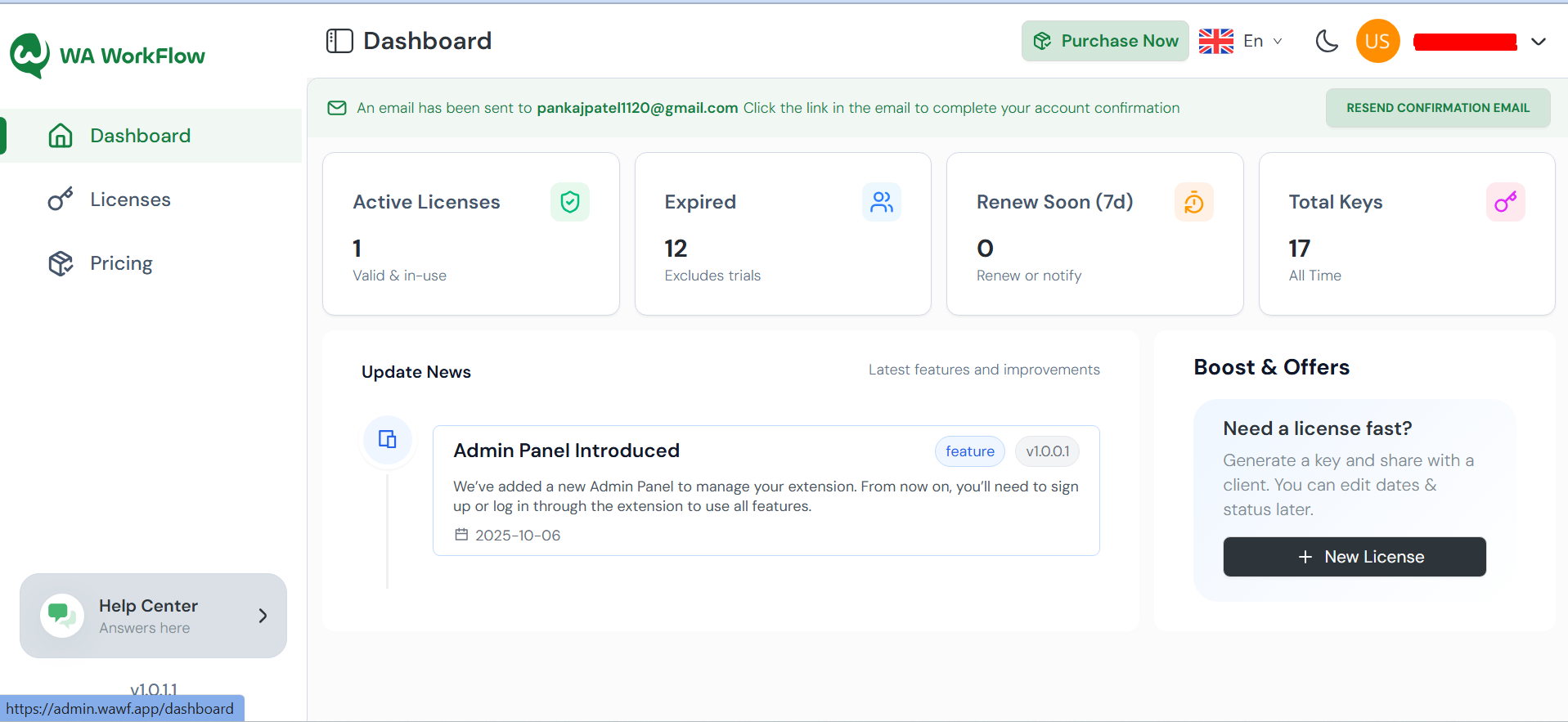
* After successful login, you will be redirected to the **Dashboard**
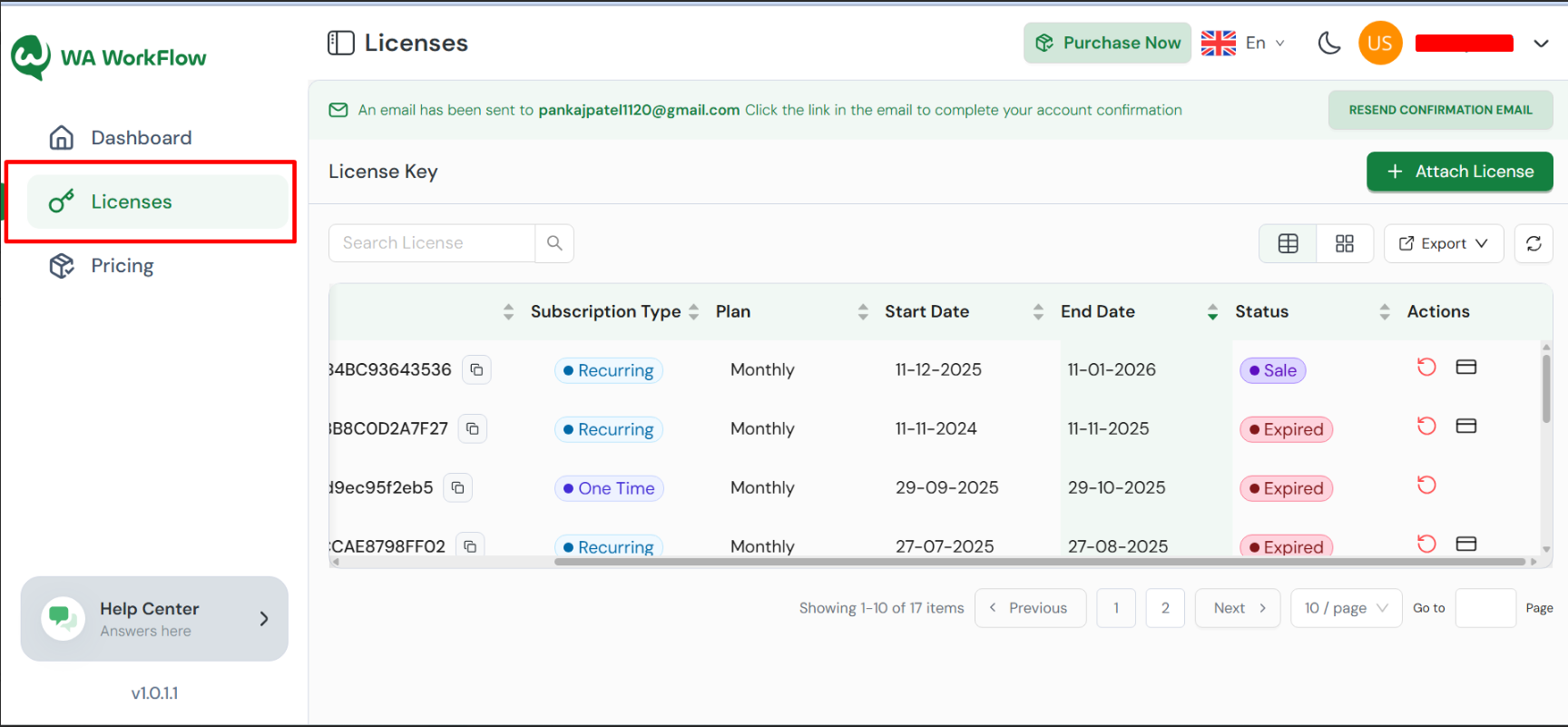
* From the dashboard, click on **License Key Dashboard**\
#### **Step 3: Select the License Key**
* You will see a list of all license keys linked to your account
* Locate the **license key** you want to reset
#### **Step 4: Reset the License Key**
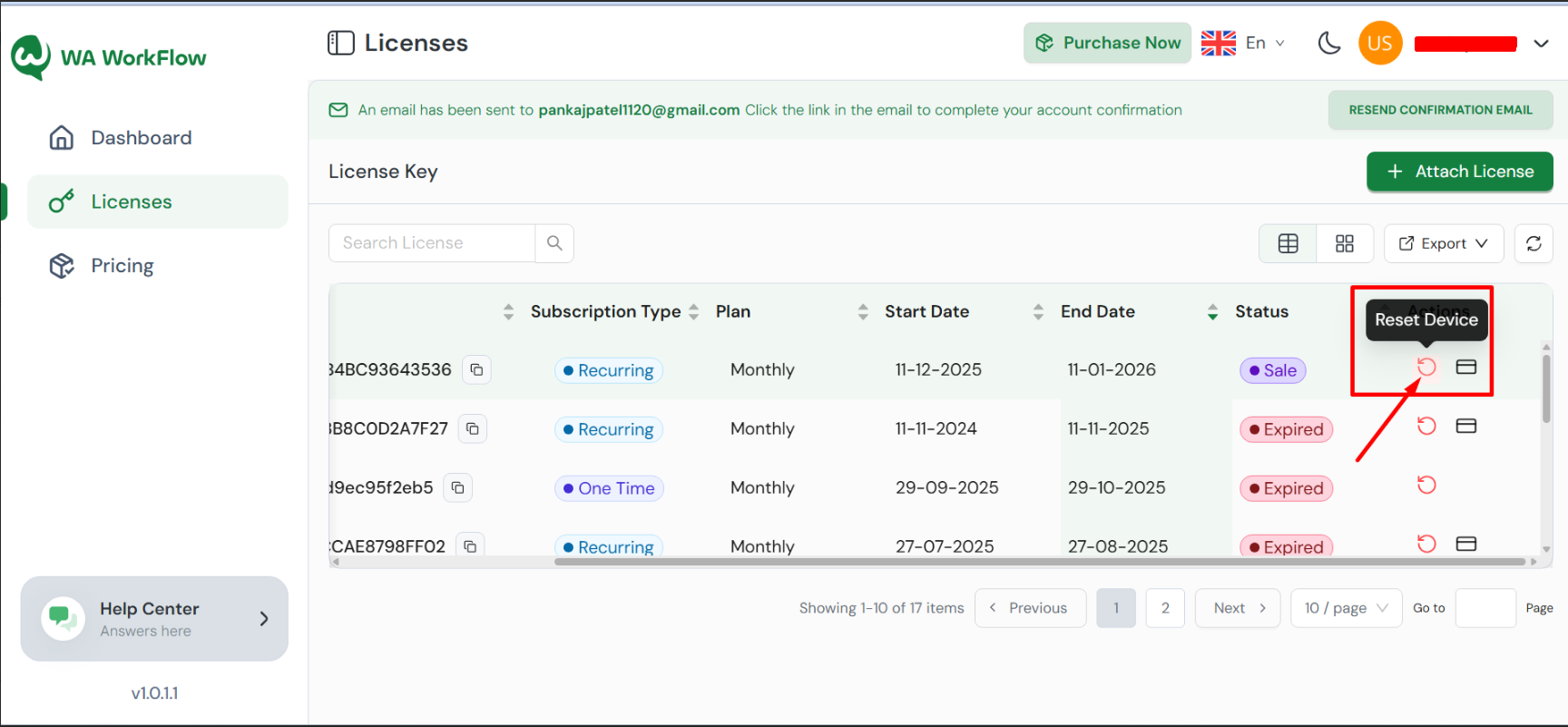
* Next to the selected license key, click on the **Reset** option
* Confirm the action when prompted
Once reset:
* All currently connected devices will be disconnected
* You can now **reinsert the license key** on your desired device\
\
### **When Should You Use License Reset?**
You may need to reset your license key if:
* You changed or reinstalled your device
* You reached the **maximum device limit**
* The extension is asking for the license key again
* A device was disconnected unexpectedly
#### 4. Using the License on Multiple Devices
The WA Workflow Extension allows you to use a single license on up to **4 devices** with the same number. This means:
* You can install the extension on both a primary and a secondary device.
* Log in with the same number on each device to ensure usage.
* 📝 **License Activation Info**
When you register your license on your **primary device**, the **other 3 devices** will automatically connect using the **same license**.\
You **do not** need to enter the license key again on the other devices.
***
#### 5. Additional Support
For any further assistance with transferring or managing your number, or if you encounter any issues, please contact our **Support Team**. We're here to help!