# How to Install Extension

#### <mark style="color:green;">Table of Contents</mark>

1. [Introduction to WA Workflow Extension](#introduction)
2. [Requirements](#requirements)
3. [Step-by-Step Installation Guide](#installation-guide)
4. [Troubleshooting Installation](#troubleshooting)
5. [FAQs](#faqs)

***

#### 1. <mark style="color:green;">Introduction to WA Workflow Extension</mark> <a href="#introduction" id="introduction"></a>

The **WA Workflow Extension** is a browser extension tailored for users of WhatsApp Web. By adding this extension, users gain access to advanced workflow tools, helping them to manage and respond to messages more efficiently. Ideal for business users, frequent communicators, and anyone looking to improve their WhatsApp experience.

#### 2. <mark style="color:green;">Requirements</mark> <a href="#requirements" id="requirements"></a>

Before you begin, ensure the following requirements are met:

* A compatible web browser (Chrome, Firefox, or Edge)
* An active internet connection
* A valid WhatsApp account

#### 3. <mark style="color:green;">Step-by-Step Installation Guide</mark> <a href="#installation-guide" id="installation-guide"></a>

To install the WA Workflow Extension, follow these instructions:

<mark style="color:green;">Step 1: Access the Extension Link</mark>

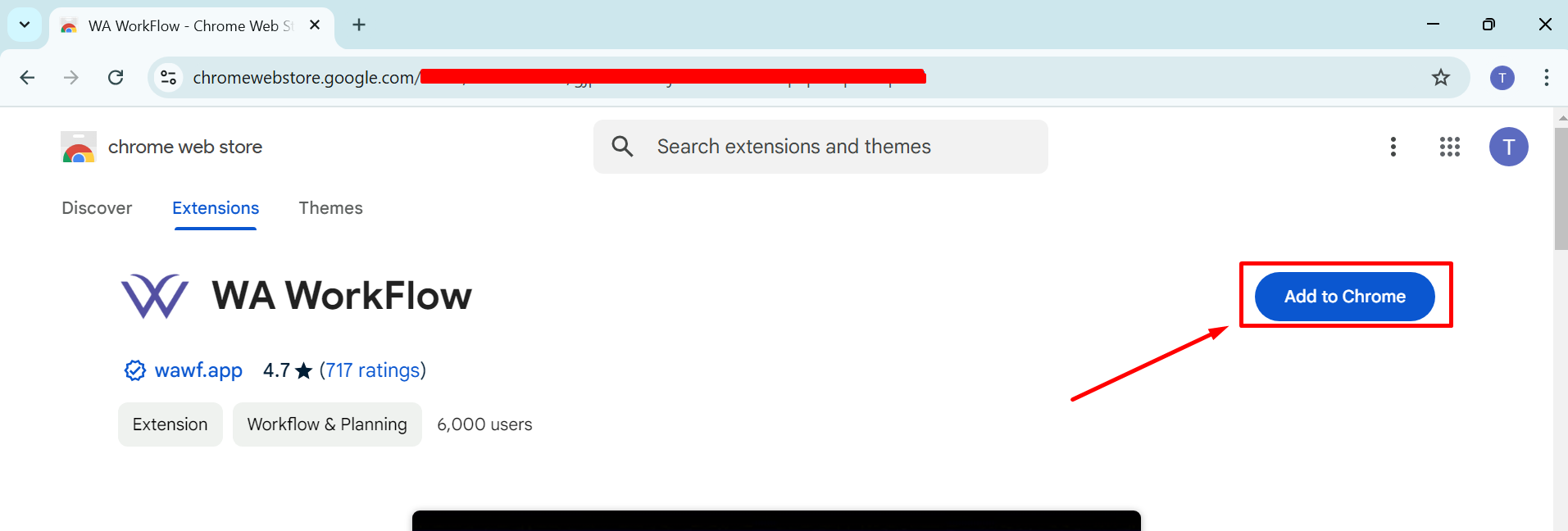
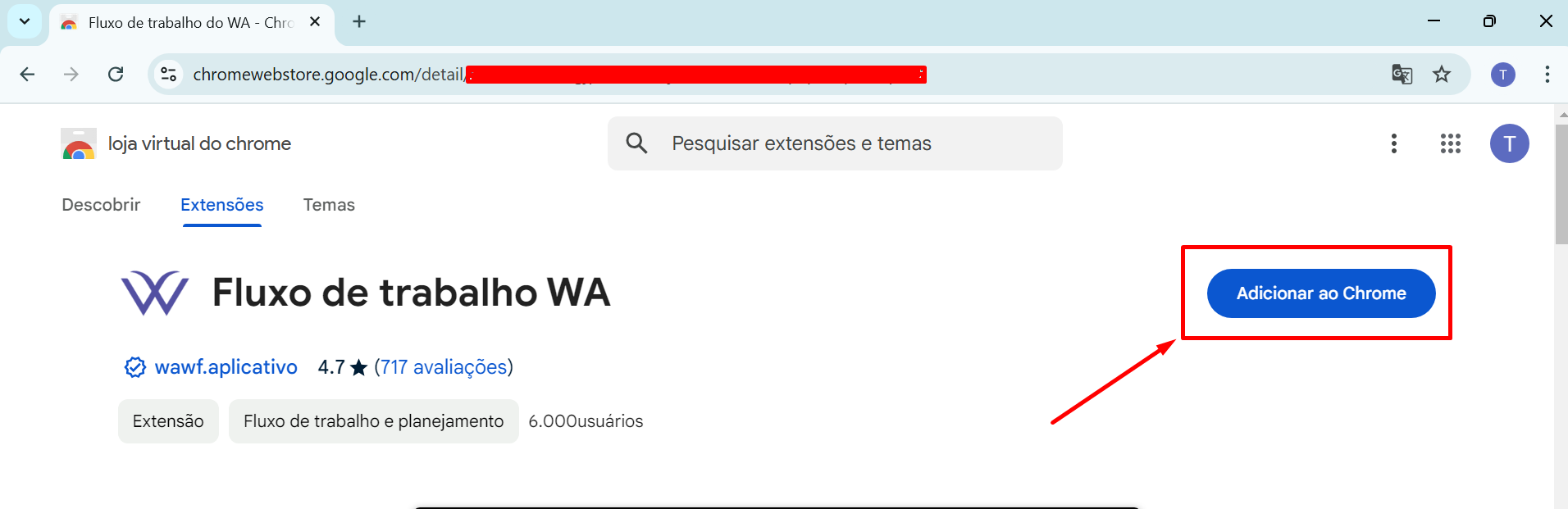
1. Open the provided link for the **WA Workflow Extension** in your browser. The link will take you to the extension's page in the Chrome Web Store (or the appropriate extension store for your browser).
2. You will see a page similar to the one shown in the image below.

<div><figure><img src="https://2691879874-files.gitbook.io/~/files/v0/b/gitbook-x-prod.appspot.com/o/spaces%2FY0fgTGGya7eedNTCP3jK%2Fuploads%2FDb3kFQLOafVFzyAqfrof%2F41.png?alt=media&#x26;token=8fd33c28-93f6-41e1-9fe5-d6cfae089d0f" alt=""><figcaption></figcaption></figure> <figure><img src="https://2691879874-files.gitbook.io/~/files/v0/b/gitbook-x-prod.appspot.com/o/spaces%2FY0fgTGGya7eedNTCP3jK%2Fuploads%2F0JwUgfirq48FA77nYUeM%2F42.png?alt=media&#x26;token=c49f1fc7-21ae-4d8a-bdf4-5347b153856a" alt=""><figcaption></figcaption></figure></div>

<mark style="color:green;">Step 2: Add the Extension to Your Browser</mark>

1. Once on the extension page, locate the **Add** or **Get Extension** button.
2. Click on this button to start the installation process.

<div><figure><img src="https://2691879874-files.gitbook.io/~/files/v0/b/gitbook-x-prod.appspot.com/o/spaces%2FY0fgTGGya7eedNTCP3jK%2Fuploads%2FHKka4m5Gew0qD537jztV%2F41.png?alt=media&#x26;token=662117ca-c31d-4427-96e9-e402ba7ff912" alt=""><figcaption></figcaption></figure> <figure><img src="https://2691879874-files.gitbook.io/~/files/v0/b/gitbook-x-prod.appspot.com/o/spaces%2FY0fgTGGya7eedNTCP3jK%2Fuploads%2F0VdbbC9vzG9FhbPmjhzh%2F42.png?alt=media&#x26;token=d5e8ebb8-b4ad-4c63-bb68-ce57077be305" alt=""><figcaption></figcaption></figure></div>

<mark style="color:green;">Step 3: Grant Permissions</mark>

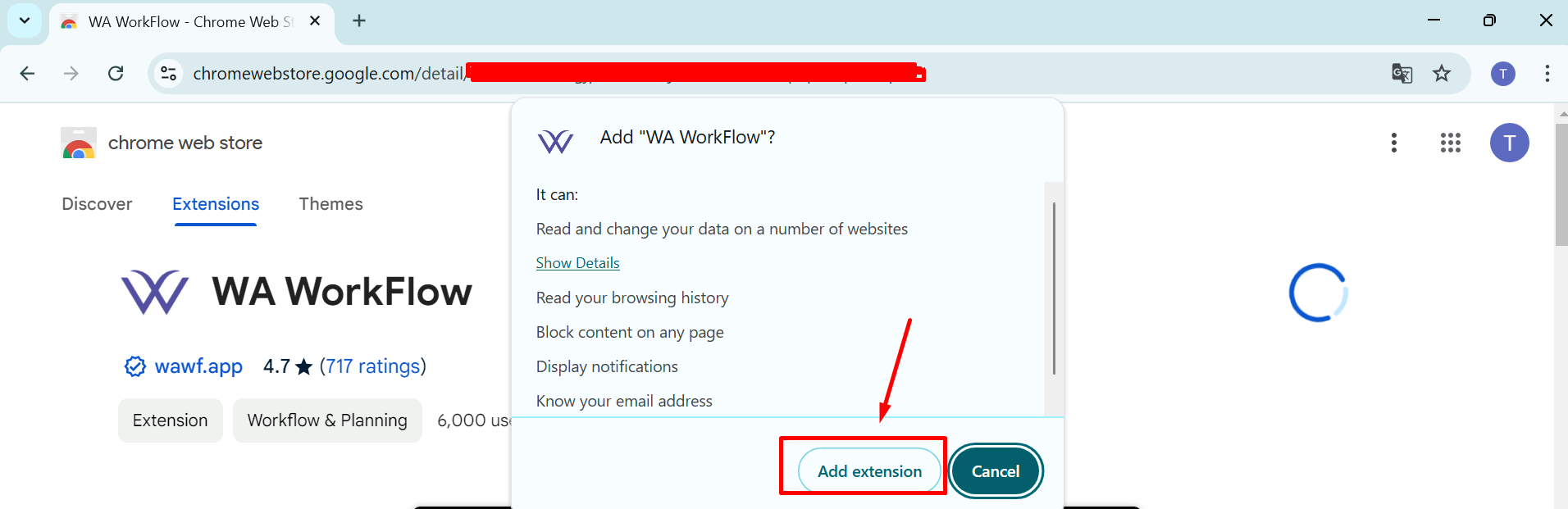
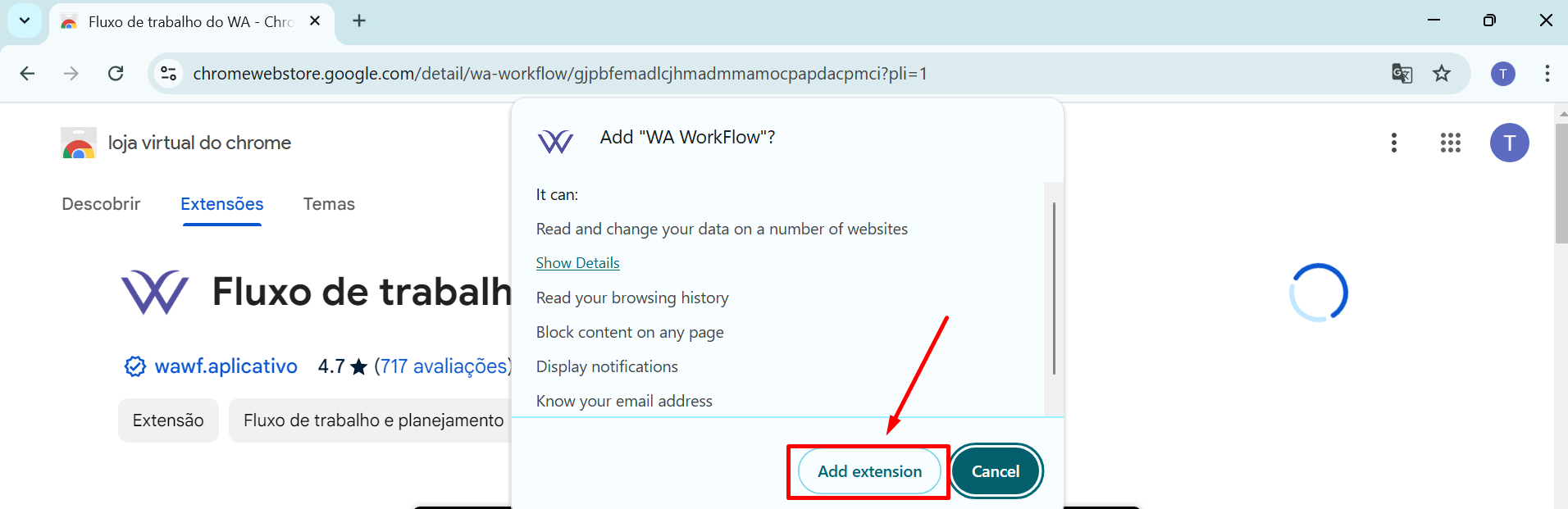
1. A permission prompt will appear, requesting access to certain features for the extension to function correctly.
2. Click on the **Add** or **Allow** button in this prompt to proceed.

<div><figure><img src="https://2691879874-files.gitbook.io/~/files/v0/b/gitbook-x-prod.appspot.com/o/spaces%2FY0fgTGGya7eedNTCP3jK%2Fuploads%2FHp3CYfanI8EmT7F1Nhpc%2F43.png?alt=media&#x26;token=bfd5fa7b-4f0c-4181-b34f-057eb4babac8" alt=""><figcaption></figcaption></figure> <figure><img src="https://2691879874-files.gitbook.io/~/files/v0/b/gitbook-x-prod.appspot.com/o/spaces%2FY0fgTGGya7eedNTCP3jK%2Fuploads%2FpIEBxE5lsJGdZd8BaXX6%2F44.png?alt=media&#x26;token=6263f0f2-d343-4d7f-adf3-53eed1a3f6a5" alt=""><figcaption></figcaption></figure></div>

<mark style="color:green;">Step 4: Open WhatsApp Web</mark>

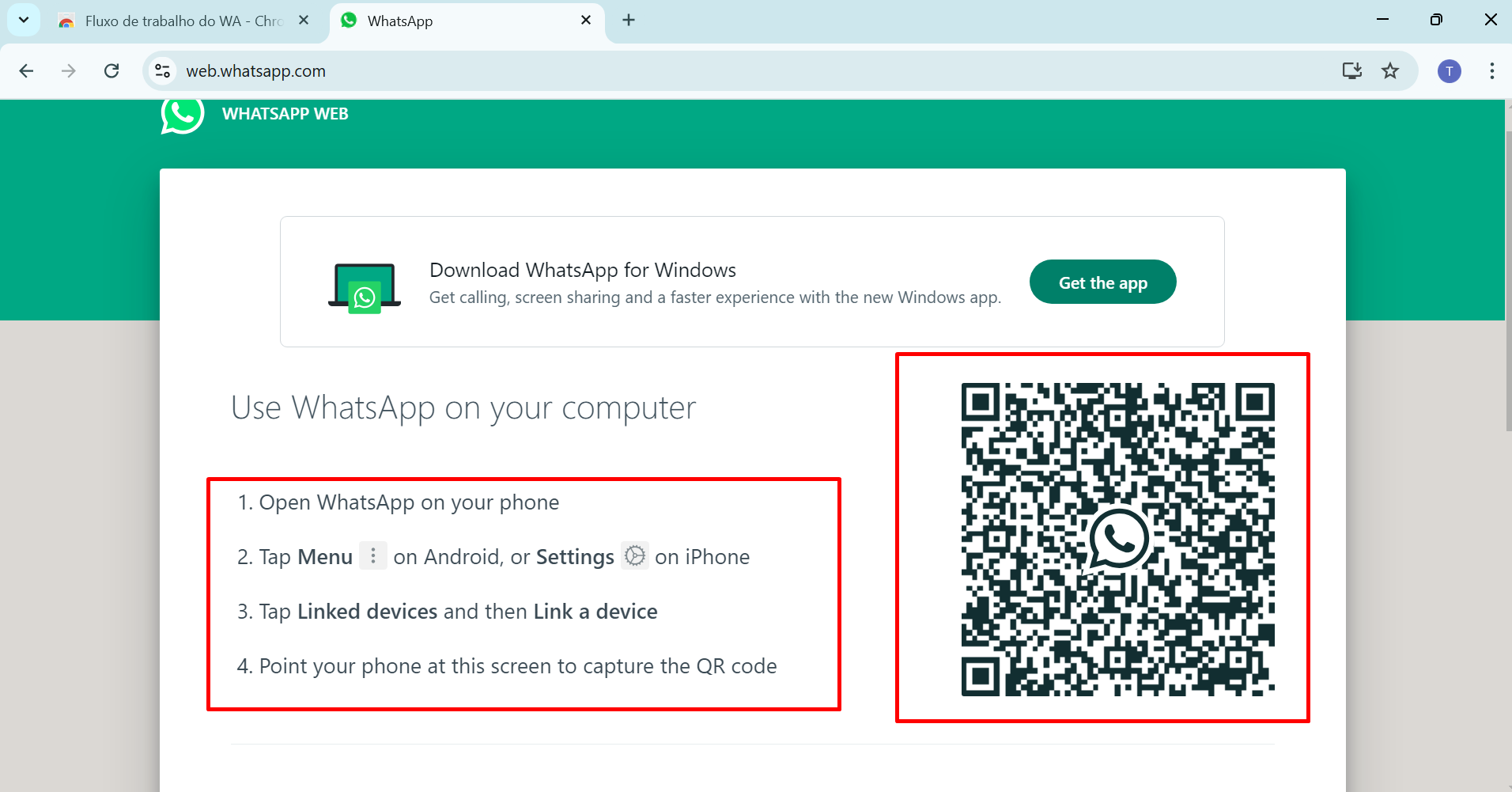
1. Once the extension is added, open WhatsApp Web in your browser.
2. Log in to your WhatsApp account if you haven’t already.

<div><figure><img src="https://2691879874-files.gitbook.io/~/files/v0/b/gitbook-x-prod.appspot.com/o/spaces%2FY0fgTGGya7eedNTCP3jK%2Fuploads%2FzD12VnoBQrnMPa8CdcJx%2F45.png?alt=media&#x26;token=2e8795cb-e0ff-46c1-abe2-dbcfd24fa15f" alt=""><figcaption></figcaption></figure> <figure><img src="https://2691879874-files.gitbook.io/~/files/v0/b/gitbook-x-prod.appspot.com/o/spaces%2FY0fgTGGya7eedNTCP3jK%2Fuploads%2FdpfWYI3rXPVOKmltJeE0%2F46.png?alt=media&#x26;token=9f44fdb8-3987-403d-9965-22aa393cde2c" alt=""><figcaption></figcaption></figure></div>

<mark style="color:green;">Step 5: Wait for the Extension to Load</mark>

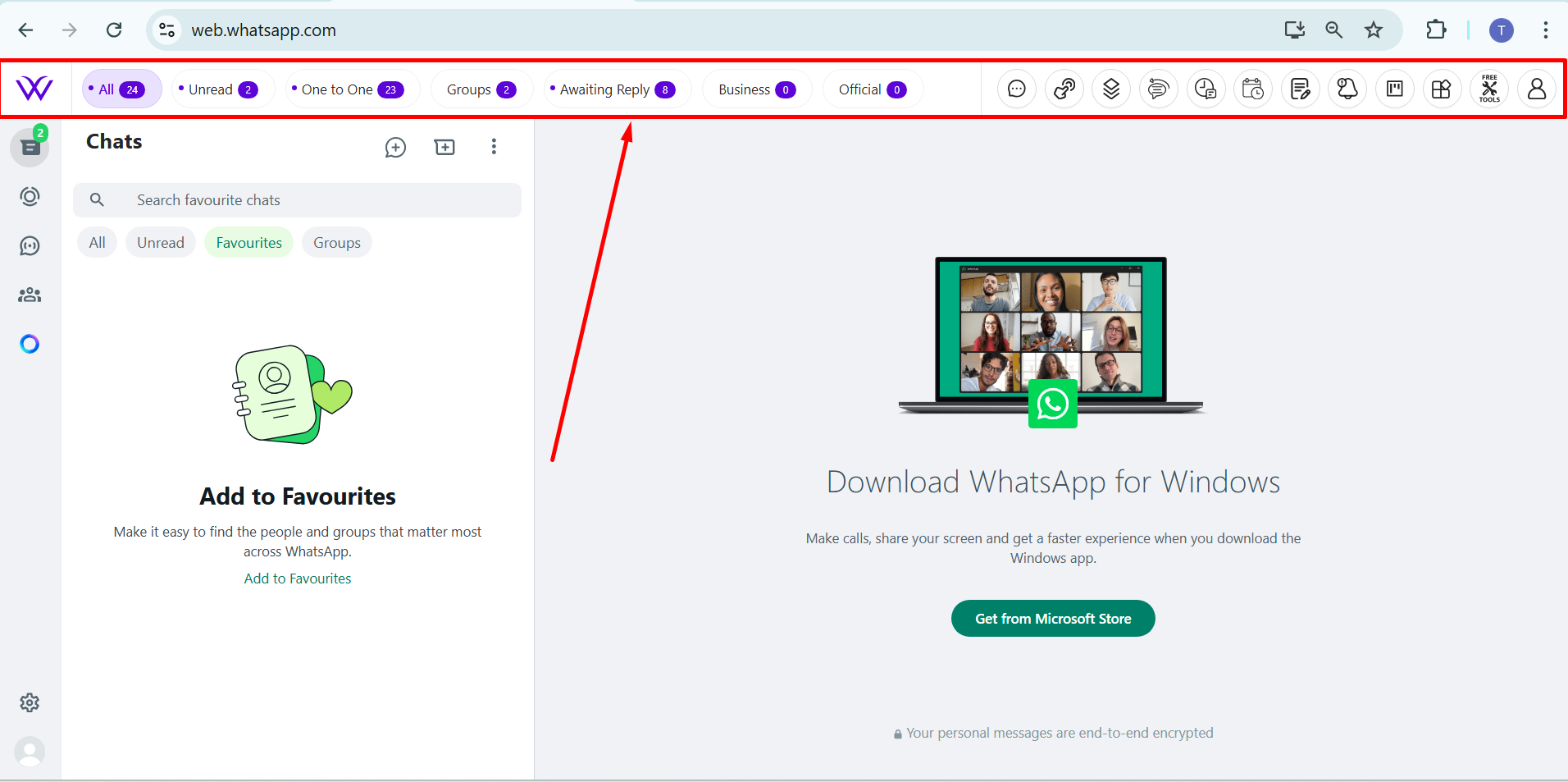
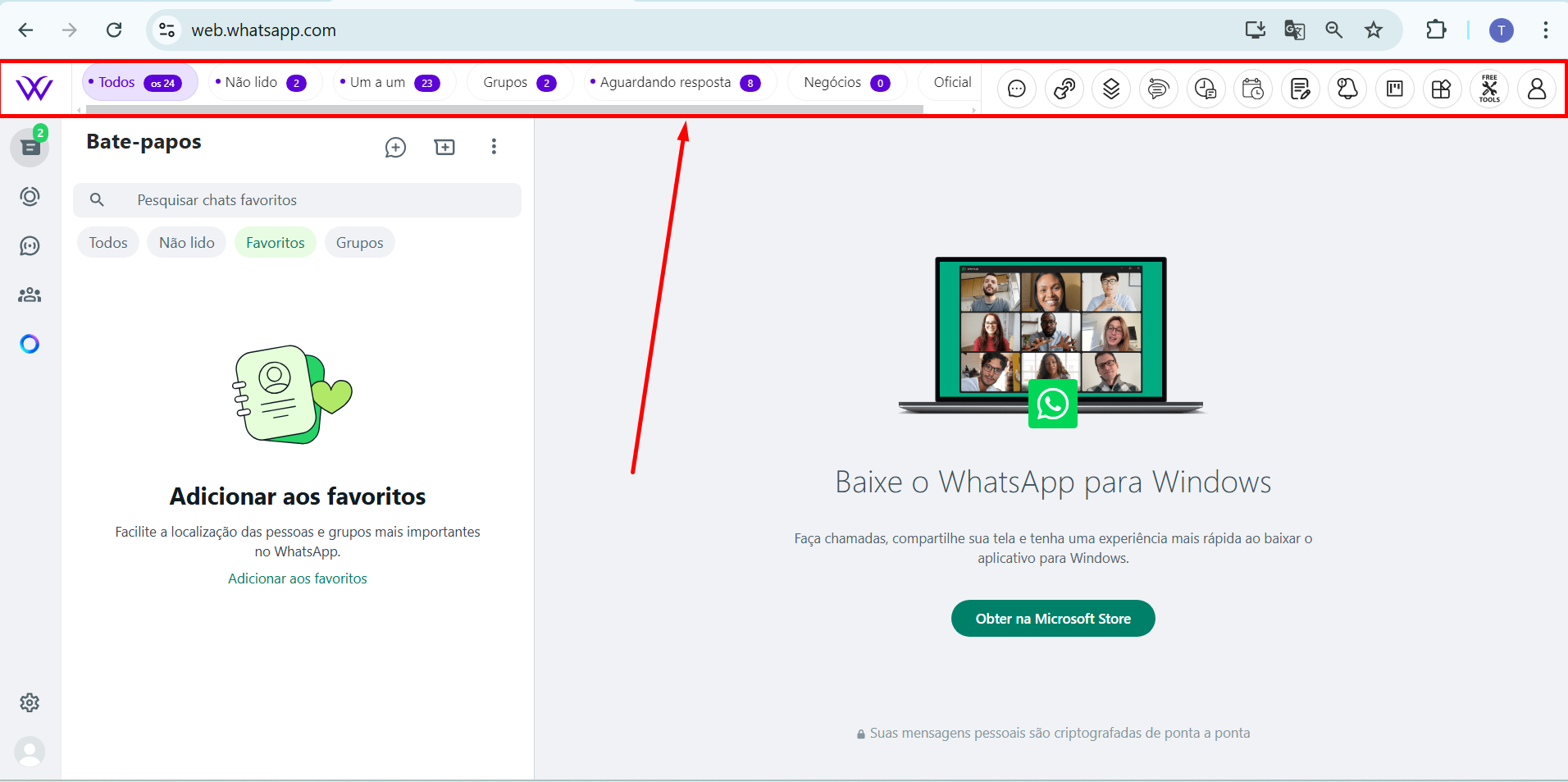
1. After logging into WhatsApp Web, wait a moment for the extension to fully load.
2. Once loaded, you’ll see new features integrated within your WhatsApp Web interface, indicating the successful installation of the WA Workflow Extension.

<div><figure><img src="https://2691879874-files.gitbook.io/~/files/v0/b/gitbook-x-prod.appspot.com/o/spaces%2FY0fgTGGya7eedNTCP3jK%2Fuploads%2FqsrVMVGJMrUPSZTWZw5M%2F47.png?alt=media&#x26;token=029dc998-29e1-4c05-9e29-880c79d50e0f" alt=""><figcaption></figcaption></figure> <figure><img src="https://2691879874-files.gitbook.io/~/files/v0/b/gitbook-x-prod.appspot.com/o/spaces%2FY0fgTGGya7eedNTCP3jK%2Fuploads%2Ftcii8EOtzJSTrgIICJcL%2F48.png?alt=media&#x26;token=bca13c7f-21af-4f3b-8ffa-bd72587c83fc" alt=""><figcaption></figcaption></figure></div>

***

#### <mark style="color:green;">4. Troubleshooting Installation</mark> <a href="#troubleshooting" id="troubleshooting"></a>

If you encounter issues during installation, try these solutions:

* **Issue: “Add” Button Not Visible**\
  Solution: Ensure you’re using a compatible browser. Restart the browser and try again.
* **Issue: Permission Prompt Not Appearing**\
  Solution: Check if pop-ups are blocked in your browser settings. Enable pop-ups for the extension site.
* **Issue: Extension Not Showing on WhatsApp Web**\
  Solution: Clear your browser’s cache, reload WhatsApp Web, and wait a few moments for the extension to initialize.

***

#### <mark style="color:green;">5. FAQs</mark> <a href="#faqs" id="faqs"></a>

**Q1: Do I need to re-install the extension if I clear my browser cache?**\
A: No, clearing the cache won’t uninstall the extension. Simply reopen WhatsApp Web to allow the extension to load again.

**Q2: Does the WA Workflow Extension work on mobile browsers?**\
A: No, this extension is designed for desktop browsers only.

**Q3: Is my WhatsApp data secure with this extension?**\
A: Yes, WA Workflow Extension does not access or store any personal data. It only interacts with WhatsApp Web to enhance user workflow.

***

For further assistance, feel free to contact our support team or refer to additional guides provided on the extension’s webpage.