> For the complete documentation index, see [llms.txt](https://docs.wawf.app/wa-workflow/llms.txt). Markdown versions of documentation pages are available by appending `.md` to page URLs; this page is available as [Markdown](https://docs.wawf.app/wa-workflow/errors/error-maximum-number-of-devices-reached.md).
# Error: Maximum Number of Devices Reached
This error appears when your license is already activated on one WhatsApp number, and you're trying to use the same license on a different number without removing it from the first.
Follow the steps below to resolve this issue:
***
#### 🔁 **1. Transferring Your License to a New Number (If Current Number Is Active)**
👉 **Step 1: Remove the License from the Current Number**
* Go to the **Plan Details** section in the extension.
* Locate your current license.
* Click **“Remove License”** to detach it from the existing number.\

\
👉 **Step 2: Insert License into the New Number**
* After removing it from the old number, open the profile on the new number.
* Enter your license code.\
✅ Your license is now successfully transferred!\

***
#### 🚫 **2. If Your Current Number is Blocked**
If the number where the license was previously activated is blocked, follow these steps:
👉 **Step 1: Install the Extension on the New Number**
* Download and set up the **WA Workflow Extension** on your new device or number.
👉 **Step 2: Access License Management**
* Open the **Profile** section within the extension.
* Click on **“Manage License.”**\

\
👉 **Step 3: Insert License Code**
* Enter your existing license key.
* Click **“Search.”**
* Your blocked number will appear.\

👉 **Step 4: Remove the Blocked Number**
* Click **“Remove”** next to the blocked number.\

👉 **Step 5: Add License to the New Number**
* Once the blocked number is removed, input the license code into your new number’s profile.\
✅ The license will now be active on your new number.\

#### 3. **Reset License Key from Admin Panel**
Before proceeding, please ensure:
* You have access to the **email address linked to your license key**
* You can log in to the **Admin Panel** using the same email
#### **Step 1: Open the Admin Panel**
* Visit the **Admin Panel login page**
* Log in using **the same email address** that is associated with your license key
* > ⚠️ Important:\
> You must log in with the **registered email**. License management options will not appear for other emails.
***
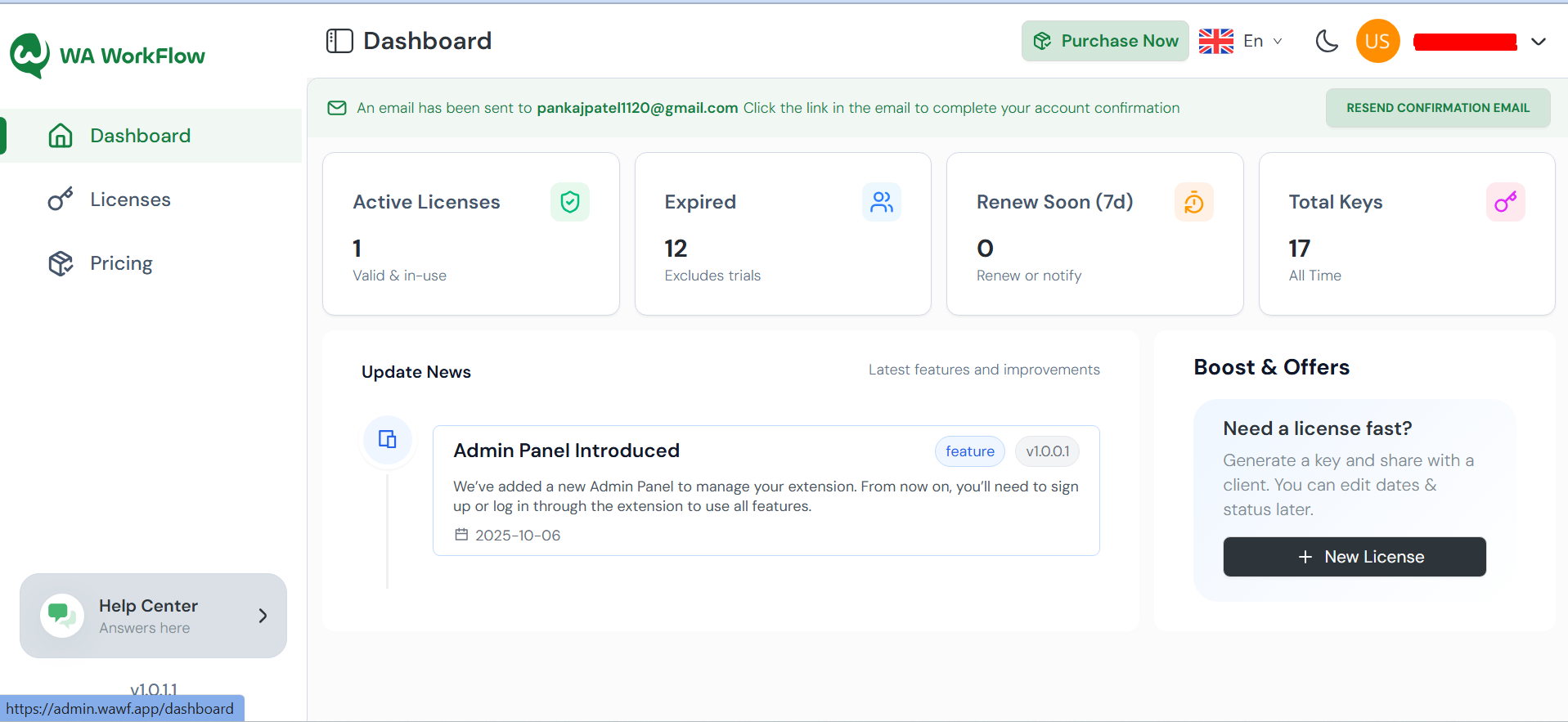
#### **Step 2: Access the License Dashboard**
* After successful login, you will be redirected to the **Dashboard**
* From the dashboard, click on **License Key Dashboard**\
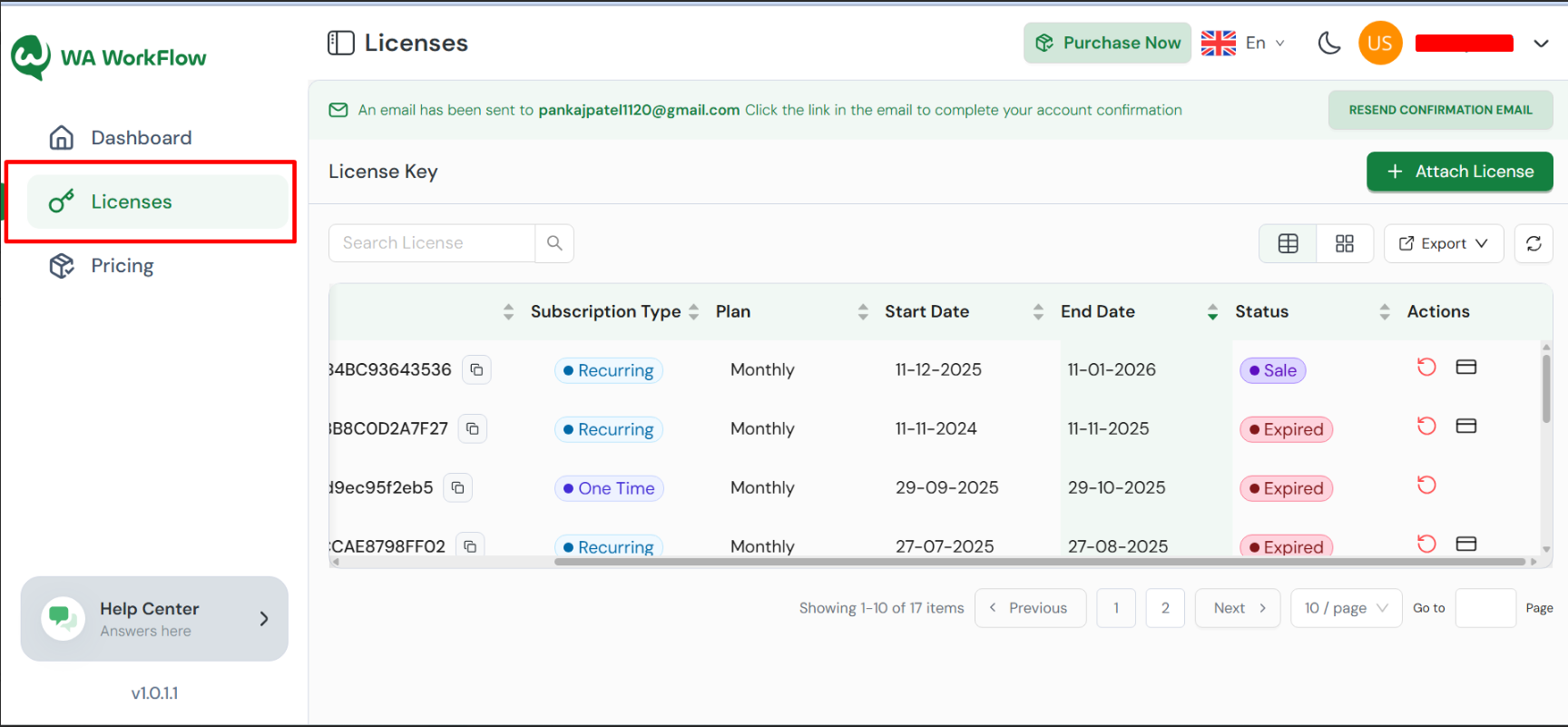
#### **Step 3: Select the License Key**
* You will see a list of all license keys linked to your account
* Locate the **license key** you want to reset
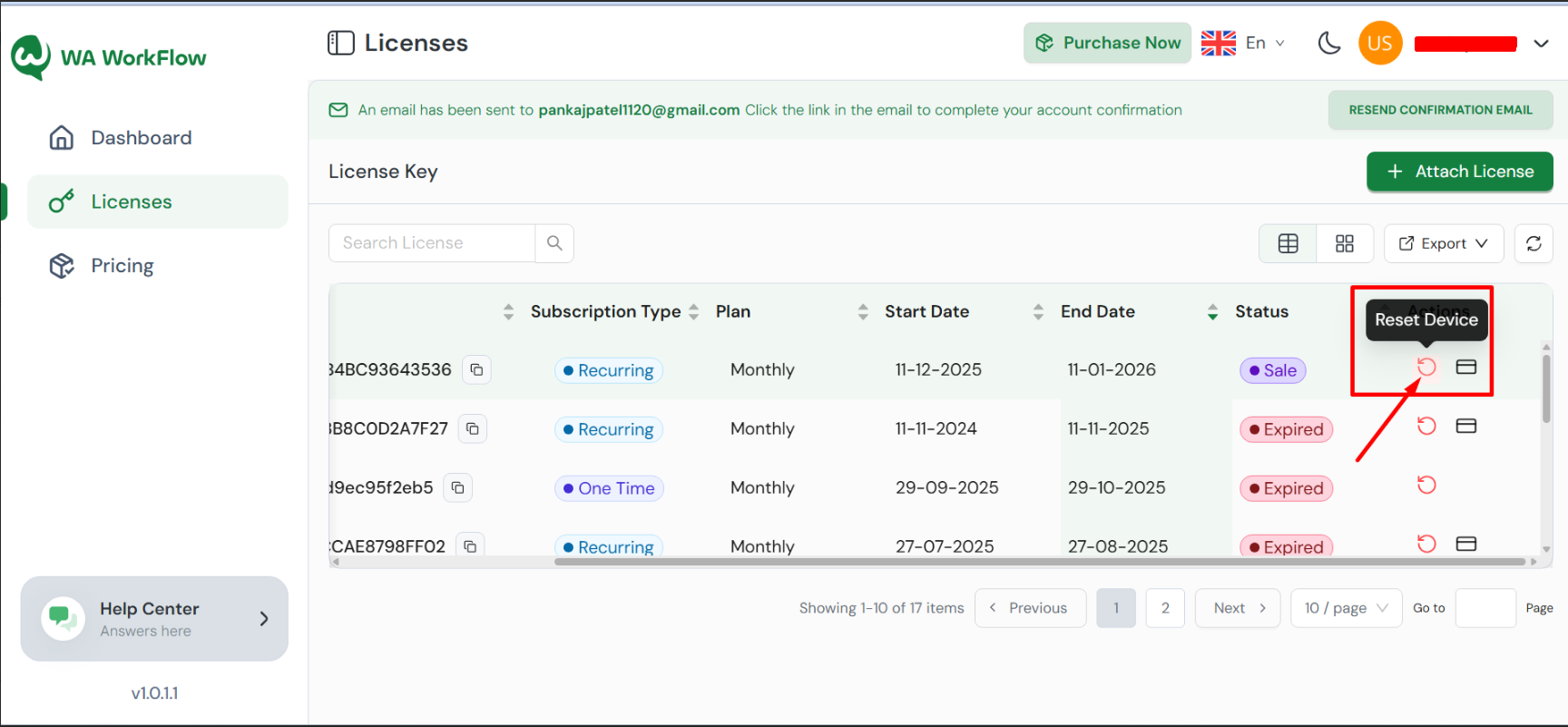
#### **Step 4: Reset the License Key**
* Next to the selected license key, click on the **Reset** option
* Confirm the action when prompted
Once reset:
* All currently connected devices will be disconnected
* You can now **reinsert the license key** on your desired device\
\
### **When Should You Use License Reset?**
You may need to reset your license key if:
* You changed or reinstalled your device
* You reached the **maximum device limit**
* The extension is asking for the license key again
* A device was disconnected unexpectedly
***
{% embed url="" %}